




How to Build Your Personal AI Workflow: Save 3 Hours Every Day in 2026
Do you ever feel like you’re drowning in a sea of never-ending tasks? A few months ago, I was spending 10 to 12 hours a day just handling emails, scheduling, and repetitive administrative work. I was honestly burnt out. And I started looking for a way out—not by working harder, but by working smarter with AI.
Table Of Content
- What Is a Personal AI Workflow?
- Why Most People Waste Hours Every Day (Without Realizing It)
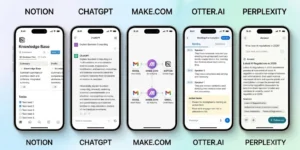
- The 5 Best AI Tools to Build Your Personal Workflow in 2026
- 1. Notion AI — Best for Knowledge Management and Writing
- 2. Make.com (formerly Integromat) — Best for No-Code Automation
- 3. ChatGPT or Claude — Best AI Writing and Thinking Assistant
- 4. Otter.ai — Best for Meeting Transcription and Notes
- 5. Perplexity AI — Best for Research and Information Gathering
- Your Step-by-Step Personal AI Workflow Setup
- Step 1: Audit Your Daily Tasks (Day 1 — 30 Minutes)
- Step 2: Set Up Your AI Writing Assistant (Day 1 — 10 Minutes)
- Step 3: Set Up Notion as Your Command Center (Day 2 — 1 Hour)
- Step 4: Automate Your First Task on Make.com (Day 3 — 45 Minutes)
- Step 5: Replace Google with Perplexity for Research (Day 4 — Ongoing)
- Step 6: Add Otter.ai to Your Meetings (Day 5 — 15 Minutes)
- Step 7: Review and Optimize Weekly (Every Sunday — 20 Minutes)
- Real Examples: What Your AI Workflow Looks Like in Practice
- Common Mistakes Beginners Make With AI Workflows
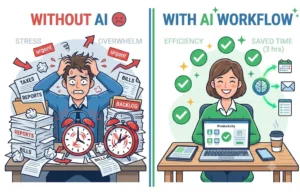
- How Much Time Can You Actually Save?
- Frequently Asked Questions
- Final Thoughts: Your Time Is Worth More Than You Think
- Personal Note
I began experimenting with building my own AI workflow, and the results were a game-changer. Today, I’m reclaiming 3 hours of my day, every single day. In this guide, I’m pulling back the curtain on the exact AI workflow I use, so you can stop being a machine and start acting like a creative strategist
What if you could get back 3 hours every single day — without working harder?
In 2026, that is not a dream. It is what thousands of people are doing right now using a personal AI workflow.
Think about how much time you waste every day on repetitive tasks. Writing emails from scratch. Searching for information you already have. Rewriting the same type of content over and over, and manually moving data from one app to another.
According to productivity researchers, the average person wastes 2 to 4 hours daily on tasks that AI can handle in minutes.
What Is a Personal AI Workflow?
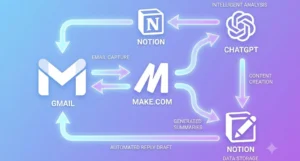
A personal AI workflow is a system where AI tools work together to handle your repetitive daily tasks automatically — so you can focus on the work that actually requires your brain.
Instead of doing the same thing manually every day, you set it up once, and the AI does it for you repeatedly.
Here are some real examples:
- You receive an email → AI reads it, summarizes it, and drafts a reply for you
- You have a meeting → AI transcribes it and creates action points automatically
- You write a blog → AI formats it, adds SEO keywords, and schedules it to publish
- You get a new lead → AI adds them to your spreadsheet and sends a welcome message
Each of these tasks might take you 10 to 30 minutes manually. With an AI workflow, they happen in seconds — or completely automatically while you sleep.
Why Most People Waste Hours Every Day (Without Realizing It)
Before building your AI workflow, it helps to understand where your time actually goes.
Here are the top 5 daily time-wasters that AI can eliminate:
1. Writing repetitive emails and messages. Most people write the same types of emails over and over — follow-ups, introductions, thank-yous, and responses. AI can generate these in 10 seconds.
2. Searching for information you already have. How often do you search through old chats, emails, or documents to find something you know you saved somewhere? AI-powered knowledge tools like Notion AI can find and surface this instantly.
3. Manual data entry and organization. Moving information from one place to another — from email to spreadsheet, from chat to task list — is pure time waste. Automation tools like Make.com handle this invisibly.
4. Summarizing long content: Reading a 30-minute video, a 20-page report, or a long email thread just to get the key points? AI summarizes any content in under a minute.
5. Scheduling and calendar management. Going back and forth over email to find a meeting time is one of the biggest hidden time-wasters. AI scheduling tools eliminate this.
The 5 Best AI Tools to Build Your Personal Workflow in 2026
You do not need all of these. Start with one or two and expand as you get comfortable.
1. Notion AI — Best for Knowledge Management and Writing
Price: Free plan available | Paid from $10/month Best for: Notes, documents, task management, writing assistance
Notion AI is one of the most powerful productivity tools available in 2026. It combines a notes app, project manager, wiki, and database — all supercharged with AI.
With Notion AI, you can:
- Ask your notes questions and get instant answers
- Write, edit, and summarize any document with one click
- Create automated databases that organize your work
- Build a personal knowledge base that the AI can search for you
Best workflow use case: Create a “Second Brain” in Notion where all your notes, research, and ideas live. Then use Notion AI to instantly pull up anything you need or turn rough notes into polished content.
2. Make.com (formerly Integromat) — Best for No-Code Automation
Price: Free plan available | Paid from $9/month Best for: Connecting apps and automating repetitive multi-step tasks
Make.com is a visual automation tool that connects your apps. You build “scenarios” — flowcharts that tell your apps what to do when something happens.
Example scenarios you can build:
- When someone fills your contact form → automatically add them to your email list, send them a welcome message, and notify you on WhatsApp
- When you get a new follower on Instagram → save their username to a spreadsheet automatically
- When you publish a blog post → automatically share it to all your social media platforms at once
You drag and drop — zero coding required.
Best workflow use case: Connect your email, social media, spreadsheets, and messaging apps into one automated system that works 24/7 without you touching it.
3. ChatGPT or Claude — Best AI Writing and Thinking Assistant
Price: Free plan available | Paid from $20/month. Best for: Writing, research, brainstorming, summarizing, and coding help
These large language model AI tools are like having a brilliant assistant who can write, research, explain, code, and brainstorm with you at any time of the day.
In your daily workflow, use them for:
- Drafting emails and messages in seconds
- Summarizing long articles, reports, or videos
- Brainstorming ideas for content, products, or problems
- Rewriting content to improve clarity and tone
- Answering complex questions with detailed explanations
Best workflow use case: Every time you need to write something — an email, a social post, a blog outline, a proposal — describe what you need to the AI and let it create the first draft. You just edit and send.
4. Otter.ai — Best for Meeting Transcription and Notes
Price: Free plan available | Paid from $16.99/month Best for: Automatically transcribing meetings and creating summaries
If you attend any video calls, Otter.ai is a game-changer. It automatically joins your Zoom, Google Meet, or Microsoft Teams calls, transcribes everything in real time, and then generates a summary with key action items.
There is no more taking notes during meetings. And no more forgetting what was discussed. No more spending 30 minutes writing up meeting notes afterward.
Best workflow use case: Let Otter.ai run in the background on every call. After the meeting, you have a complete searchable transcript and a neat summary ready to share with your team.
5. Perplexity AI — Best for Research and Information Gathering
Price: Free plan available | Paid from $20/month. Best for: Fast, accurate research with sources
Perplexity AI is like Google but smarter. Instead of showing you a list of links to click, it reads those pages for you and gives you a direct, accurate answer with citations.
Use it for:
- Quick research without opening 10 browser tabs
- Finding current statistics and data with sources
- Fact-checking information
- Getting summaries of complex topics in plain language
Best workflow use case: Replace your Google searches with Perplexity for any research task. What used to take 20 minutes of reading multiple websites now takes 2 minutes.
Your Step-by-Step Personal AI Workflow Setup
Here is a practical system you can implement starting today. Follow these steps in order.
Step 1: Audit Your Daily Tasks (Day 1 — 30 Minutes)
Before automating anything, write down everything you do repeatedly every week. Be specific. Examples:
- “I answer the same 5 types of customer questions.”
- “I write 3 social media posts every day.”
- “I manually copy emails into a spreadsheet.”
- “I spend 45 minutes researching topics for content.”
Look for tasks that are repetitive, time-consuming, and do not require unique human judgment. These are your automation targets.
Step 2: Set Up Your AI Writing Assistant (Day 1 — 10 Minutes)
Sign up for ChatGPT or Claude (both have free tiers). For the next 7 days, every time you need to write anything — an email, a message, a caption, a document — ask the AI to write the first draft for you.
This single habit alone saves most people 45 minutes to 1 hour every day.
Step 3: Set Up Notion as Your Command Center (Day 2 — 1 Hour)
Create a free Notion account and set up three simple pages:
- Daily Tasks — your to-do list
- Notes and Research — everything you learn or read
- Content Ideas — ideas for blogs, social posts, or projects
Enable Notion AI and start using it to summarize your notes, generate task lists, and answer questions about your saved content.
Step 4: Automate Your First Task on Make.com (Day 3 — 45 Minutes)
Sign up for Make.com for free. Build your first simple automation. A great beginner one:
“When I add a row to my Google Sheet, automatically send an email notification to myself.”
This teaches you how automations work. Once you understand the logic, you can build more powerful ones.
Step 5: Replace Google with Perplexity for Research (Day 4 — Ongoing)
This is the easiest switch with immediate results. Every time you want to search for something, open Perplexity AI instead of Google. You will get a direct answer in seconds instead of reading multiple websites.
Step 6: Add Otter.ai to Your Meetings (Day 5 — 15 Minutes)
Connect Otter.ai to your Google Calendar. From now on, it automatically joins every video call and takes notes for you.
Step 7: Review and Optimize Weekly (Every Sunday — 20 Minutes)
Every Sunday, review your week. Ask yourself:
- What tasks did I still do manually that AI could handle?
- Which automations saved me the most time?
- What can I automate next?
This ongoing improvement process is what compounds your time savings over weeks and months.
Real Examples: What Your AI Workflow Looks Like in Practice
Here is what a typical morning looks like with a personal AI workflow running:
7:00 AM — You wake up. Otter.ai has already transcribed and summarized yesterday’s late client call. You read the 3-line summary in 30 seconds instead of reviewing your messy notes.
7:15 AM — You check emails. Instead of writing responses from scratch, you paste each email into Claude and say, “Write a professional reply agreeing to this meeting.” You edit, click send. 10 emails done in 12 minutes instead of 45.
9:00 AM — You need to write a blog post. Open Perplexity, research your topic in 5 minutes. You paste your notes into Claude and ask for a full outline. You use the outline to write your post in half the usual time.
11:00 AM — A new contact form submission arrives. Make.com automatically adds their details to your CRM spreadsheet, sends them a welcome email, and pings you on WhatsApp. You did not touch anything.
Total time saved today: approximately 3 hours.
Common Mistakes Beginners Make With AI Workflows
Mistake 1: Trying to automate everything at once. Start with one tool and one workflow. Master it before adding more. Overwhelm leads to giving up.
Mistake 2: Not reviewing AI output before using it. AI makes mistakes. Always read what it generates before sending or publishing. Think of it as a very fast first draft, not a finished product.
Mistake 3: Using AI for tasks that need human judgment. AI is excellent for repetitive, structured tasks. For decisions that require empathy, creativity, or deep expertise, use AI to assist — not replace — your thinking.
Mistake 4: Paying for tools you do not use. Start with free tiers of every tool. Only upgrade when you are actively using the free version every day and hitting its limits.
How Much Time Can You Actually Save?
Here is a realistic estimate based on using the tools in this guide:
| Task | Manual Time | With AI | Daily Saving |
|---|---|---|---|
| Writing emails | 45 min | 10 min | 35 min |
| Research | 40 min | 10 min | 30 min |
| Meeting notes | 30 min | 0 min | 30 min |
| Social media content | 45 min | 15 min | 30 min |
| Data entry/organization | 30 min | 5 min | 25 min |
| Total | 190 min | 40 min | ~2.5 hrs |
And that is a conservative estimate. Many people report saving 3 to 4 hours daily once their system is fully set up.
Frequently Asked Questions
Is it hard to set up a personal AI workflow? No. The tools in this guide are designed for non-technical users. If you can use a smartphone, you can set up an AI workflow. Start with just one tool — like using ChatGPT for writing — and add more tools one at a time.
Do I need to spend money? Not at all to start. Every tool mentioned in this guide has a free plan that is powerful enough for beginners. Once you see the value, upgrading to paid plans gives you significantly more power and is almost always worth the small monthly cost.
Is AI going to replace my job? AI replaces tasks, not people. By learning to use AI now, you become significantly more valuable and productive than someone who does not. People who use AI well will have a huge advantage over those who do not.
How long until I see results? Most people notice a significant difference in their daily workload within the first week of consistently using even just one AI tool. The full system takes about 2 to 4 weeks to set up properly and start saving you 3+ hours per day.
Which tool should I start with? Start with an AI writing assistant — either ChatGPT or Claude. It requires zero setup, is free, and delivers immediate value on day one.
Final Thoughts: Your Time Is Worth More Than You Think
Every hour you spend on repetitive tasks is an hour you are not spending on work that actually grows your career, your business, or your income.
In 2026, building a personal AI workflow is no longer optional for anyone who wants to stay competitive. The tools are affordable, beginner-friendly, and deliver results from day one.
Here is your action plan starting today:
- Write down your 5 biggest daily time-wasters (30 minutes)
- Sign up for ChatGPT or Claude and use it for every writing task today
- Create a free Notion account and move your notes there this week
- Build your first Make.com automation this weekend
- Add Perplexity AI as your default research tool starting tomorrow
Do not try to do everything at once. One tool, one week, one new habit at a time. Within a month, you will wonder how you ever worked without your personal AI workflow.
Personal Note
I know, change can be tough, but taking that first small step is what truly matters. Why not choose one task today and see if AI can automate it for you? Give it a try, and let me know in the comments how your experience went—I’d love to hear about it!
Found this helpful? Share it with someone who needs to save time! And explore more AI tools and guides at Aivora Life.
Also read our related guide:
AI Agents for Personal Productivity: Complete 2026 Guide
AI Automation for Small Business







No Comment! Be the first one.